CCLEE Toolkit User Guide
An enhancement toolkit for B2B corporate websites. Four modules you can toggle independently.
| Module | Function | Default |
|---|---|---|
| AI Assistant | AI-powered content generation in the editor sidebar | Off |
| SEO Enhancer | Auto-output OG + Twitter Card + JSON-LD | On |
| Case Study CPT | Case study post type + 4 dynamic blocks | On |
Quick Start
Requirements
WordPress 6.4+ / PHP 8.0+. SEO and Case Study modules are enabled by default — no extra setup needed.
Download: cclee-plugins (GitHub)
Plugin Settings
Navigate to Settings → CCLEE Toolkit (/wp-admin/options-general.php?page=cclee-toolkit)
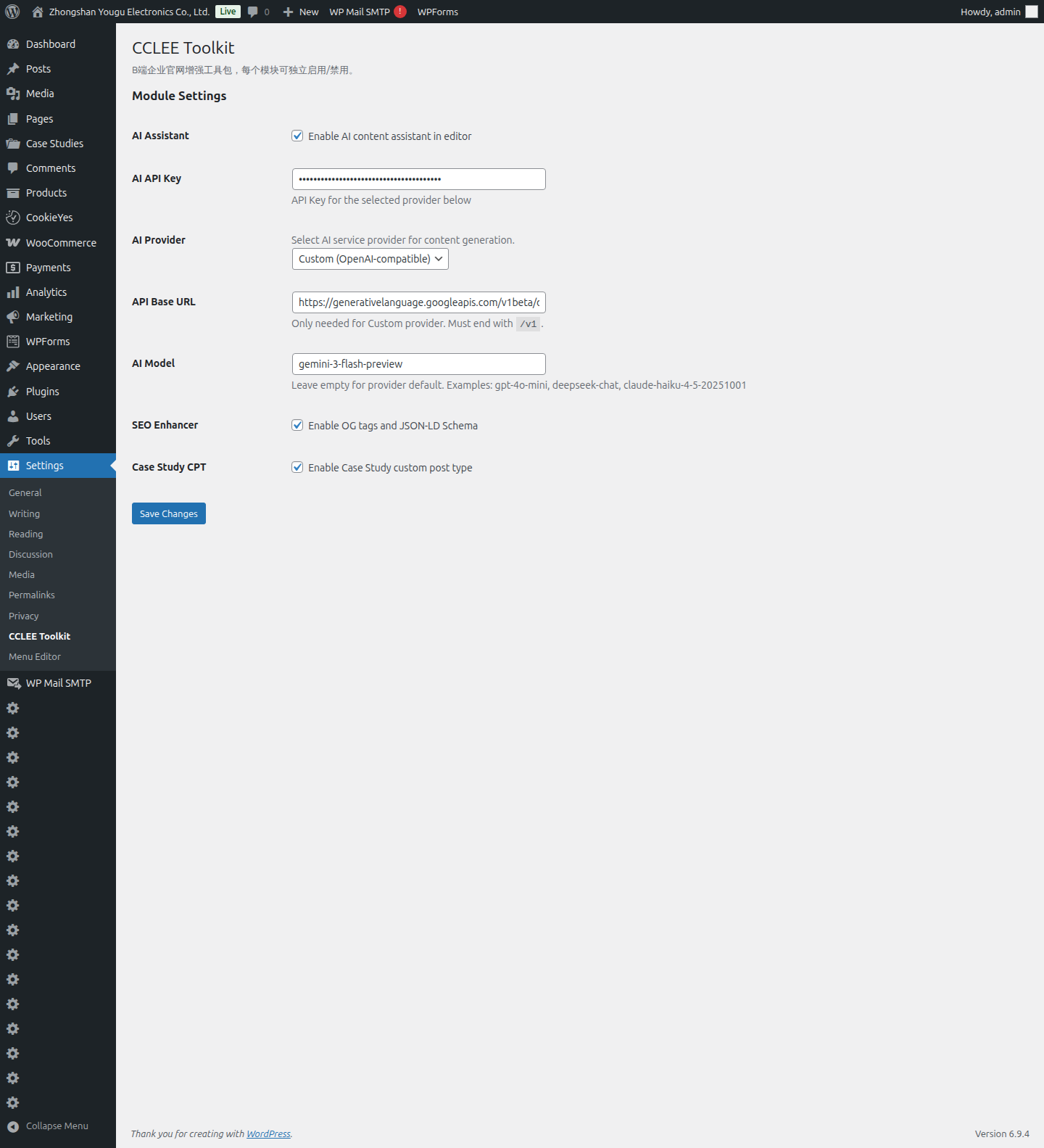
| Setting | Description |
|---|---|
| AI Assistant | Check to load the AI panel in the editor |
| AI API Key | API Key for your chosen AI provider |
| AI Provider | OpenAI / DeepSeek / Anthropic / Custom |
| API Base URL | Required only for Custom mode, must end with /v1 |
| AI Model | Leave empty to use the provider's default |
| SEO Enhancer | Auto-output social tags and structured data |
| Case Study CPT | Register case study post type and blocks |
AI Assistant — Editor AI Helper
Enabling AI
- Go to Settings → CCLEE Toolkit
- Check AI Assistant
- Select a Provider (OpenAI, DeepSeek, Anthropic, or Custom)
- Enter the corresponding API Key
- For Custom mode, also fill in API Base URL and Model
- Click Save Changes
Generating Content
- Create or edit any post/page
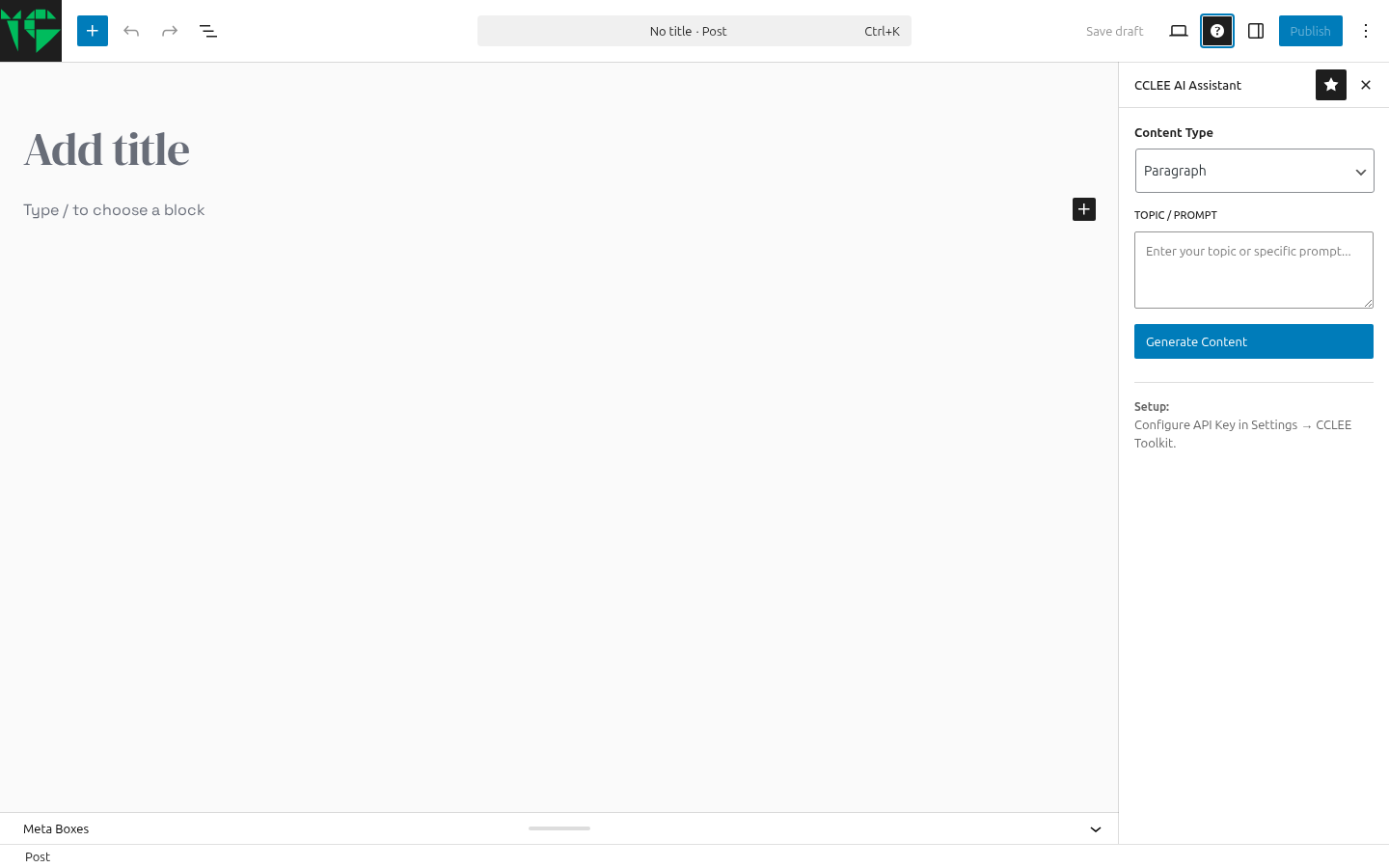
- Find the "CCLEE AI Assistant" panel in the right sidebar
- Choose a content type:
| Type | Output |
|---|---|
| Paragraph | Body text |
| Headline | Title suggestions |
| List | List items |
| CTA | Call-to-action copy |
| FAQ | Q&A pairs |
- Describe what you need in the Topic/Prompt field
- Click Generate Content
- Once generated, click Copy to Clipboard and paste into the editor
Note
If the API Key is missing or invalid, you'll see an error when generating. Make sure your key is valid and has available credits.
SEO Enhancer — Automatic SEO
Zero Configuration
This module is enabled by default and works automatically after plugin activation.
What It Outputs
All front-end pages automatically get these tags in <head>:
- Open Graph tags — og:title, og:description, og:url, og:type, og:image
- Twitter Card tags — twitter:card, twitter:title, twitter:description
- JSON-LD Schema — Single posts/pages also get Article structured data
Verifying Output
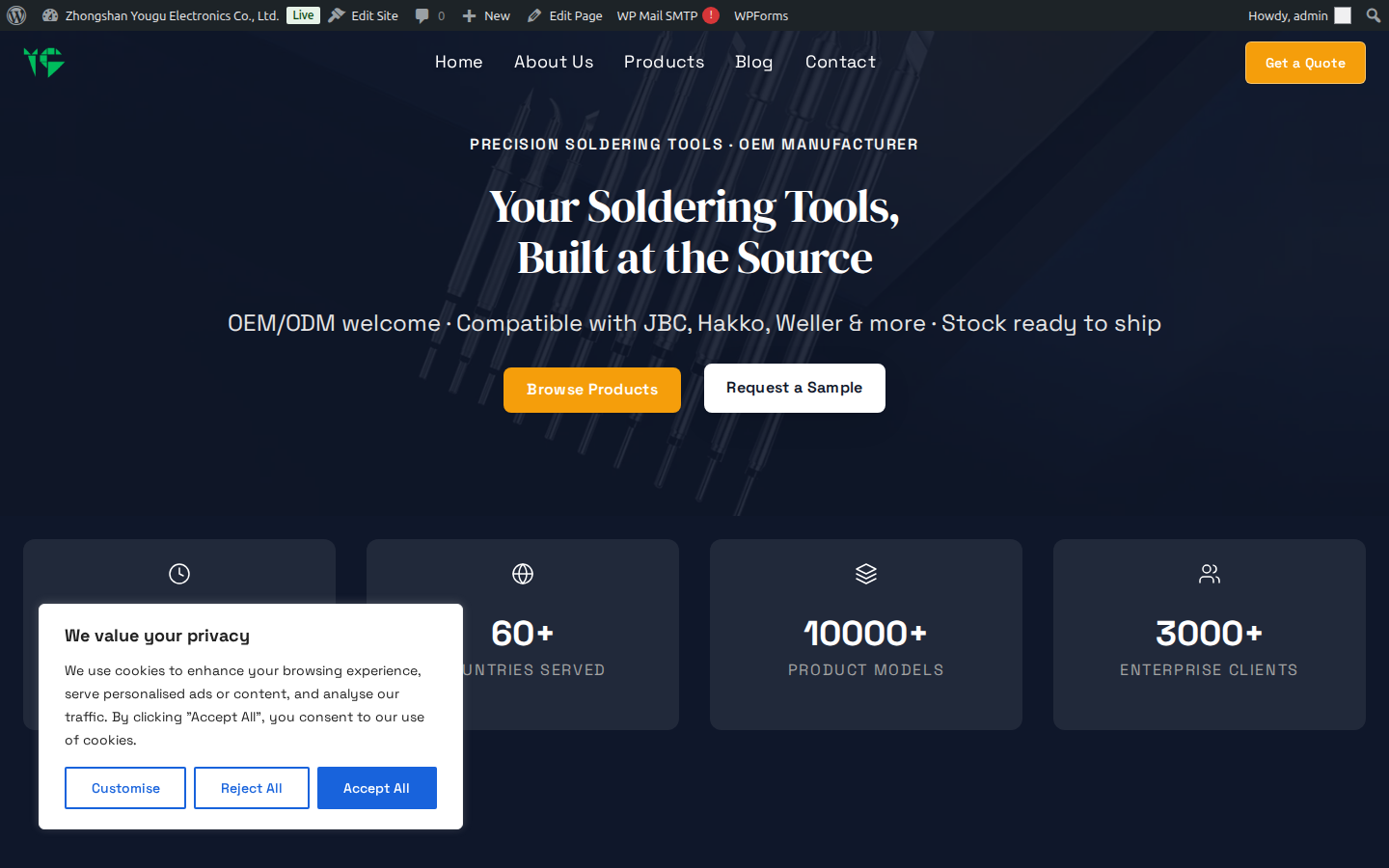
- Visit any front-end page
- Right-click → View Page Source
- Search for
og:titleortwitter:cardto confirm tags are present - On a single post page, search for
application/ld+jsonto confirm JSON-LD output
Case Study — Project Showcases
Creating a Case Study
Creating a Case Study
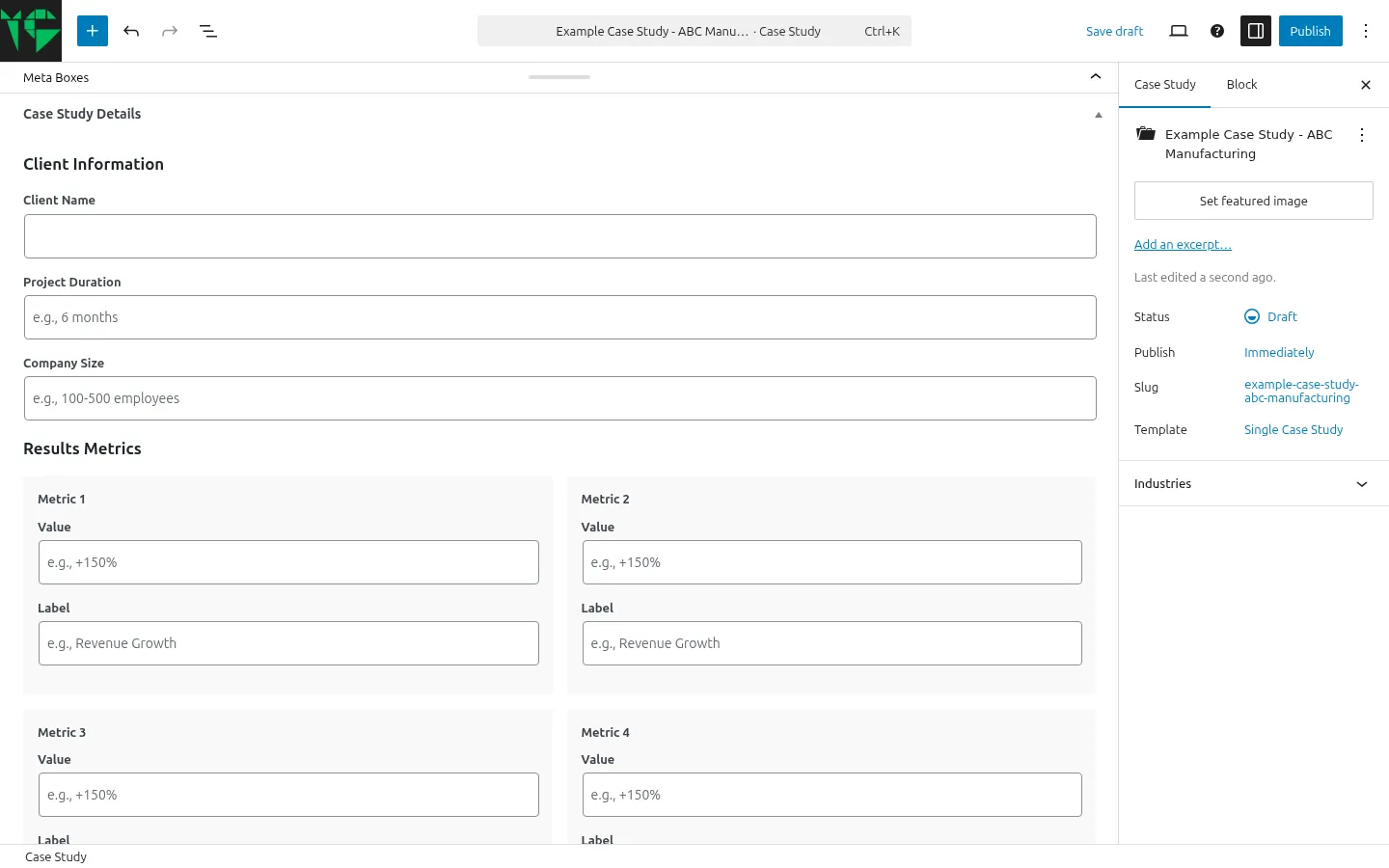
Navigate: Case Studies → Add New
Fill in the fields:
| Field | Description | Example |
|---|---|---|
| Title | Case study title | Smart Factory Upgrade |
| Client Name | Client company | TechCorp Manufacturing |
| Project Duration | Timeline | 8 months |
| Company Size | Scale | 500+ employees |
| Metric 1~4 Value/Label | Performance metrics | +200% / Revenue Growth |
| Testimonial Content | Client quote | The solution significantly improved our production line efficiency |
| Testimonial Author | Reviewer name | Zhang Wei |
Set industry via the Industries panel on the right. Click Publish when done.
The detail page auto-renders 4 Blocks: Case Hero / Case Metrics / Case Testimonial / Case Meta.
URL: /case-study/{slug}/
FAQ
AI generation returns an error?
Check three things: Is the API Key valid? Is the correct Provider selected? Can your server reach the API endpoint?
SEO tags not showing?
Confirm SEO Enhancer is enabled (it's on by default). If you're using a caching plugin, clear the cache and retry.
Case study blocks show no data?
Make sure the Meta Box fields are filled and saved. Blocks read from post meta — empty fields produce no output.
Can I insert other blocks in the case study editor?
Yes. The template renders Case Study blocks above and below the post content. Any blocks you insert in the editor appear in the middle.
Case Studies menu not showing?
Confirm Case Study CPT is enabled. If you just enabled it, refresh the admin page.