CCLEE Toolkit — WooCommerce
Admin path: CCLEE Toolkit → WooCommerce
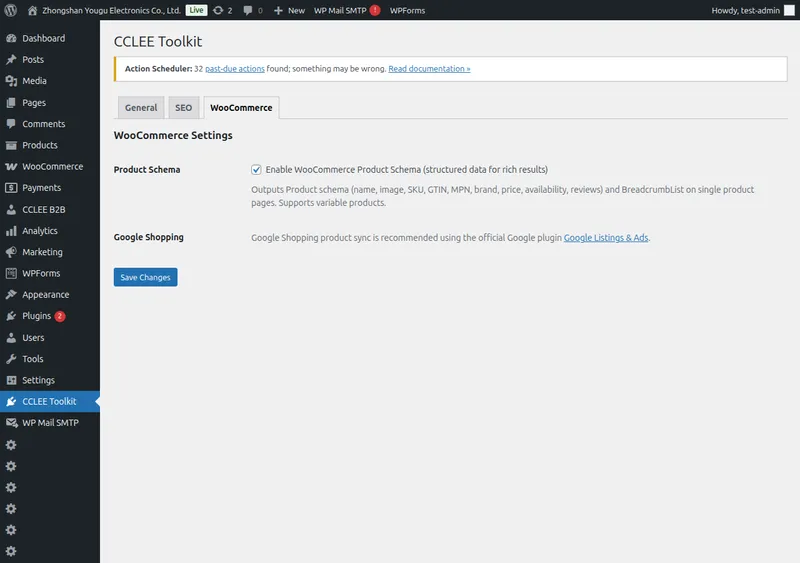
Product Schema
Check Enable WooCommerce Product Schema to enable (enabled by default).
When enabled, all WooCommerce product pages automatically output Product structured data to <head>.
Output Content
| Schema Field | Description |
|---|---|
| name | Product title |
| image | Featured image |
| description | Product description |
| sku | SKU |
| gtin | GTIN (if available) |
| mpn | MPN (if available) |
| brand | Brand (if available) |
| offers | Price, availability, merchant info |
| aggregateRating | Rating and review count (if available) |
| BreadcrumbList | Path: Home > Category > Product |
Variable products: Outputs AggregateOffer, including price range (lowest~highest) and offer count.
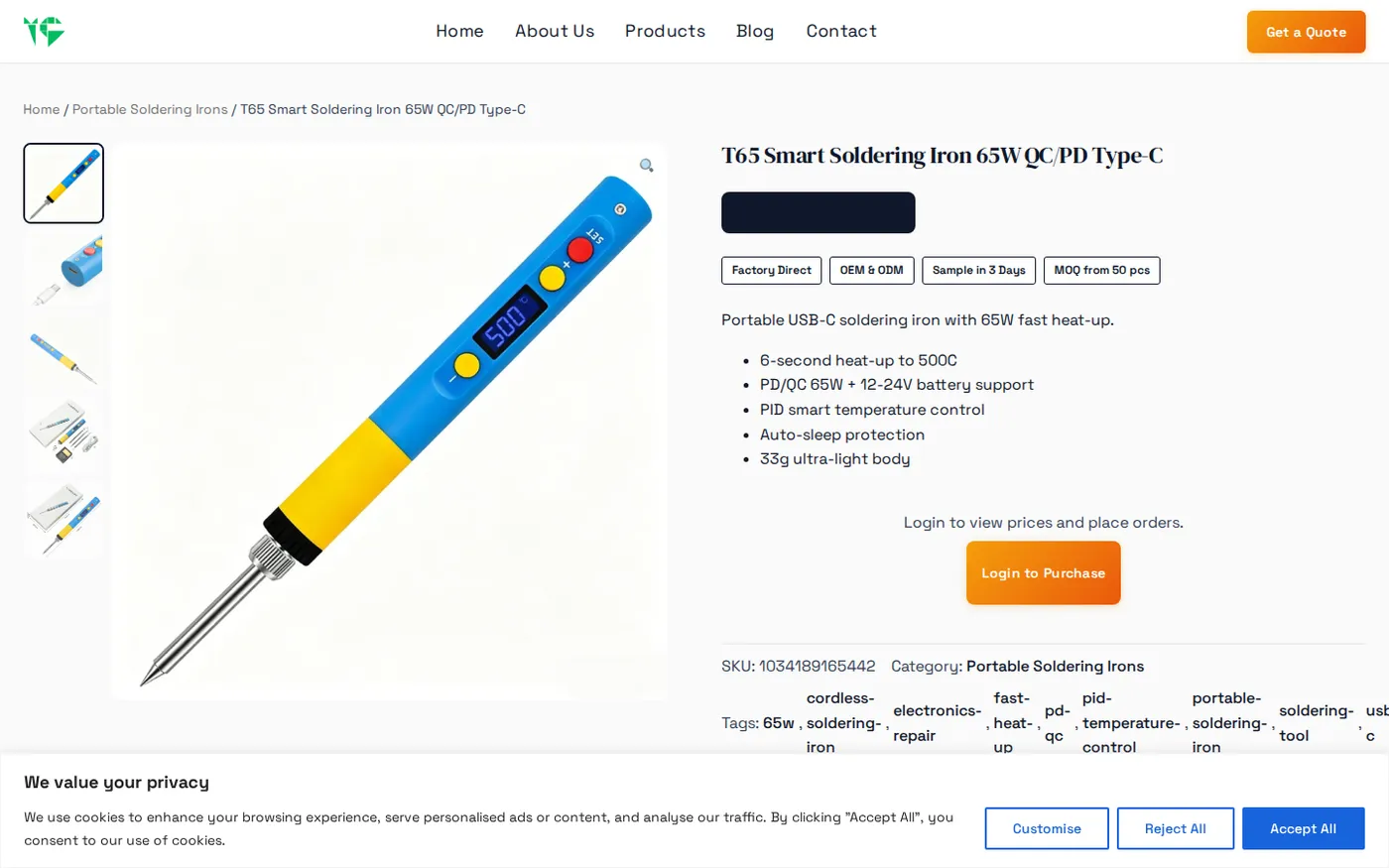
Verification Method
Verify Product Schema
- Visit any WooCommerce product page
- Right-click → View Page Source, search for
<script type="application/ld+json"> - Confirm JSON contains
"@type":"Product"
Relationship with SEO Tab
Product Schema output depends on SEO Enhancer Master Switch (SEO Tab).
When SEO master switch is off, Product Schema will not output even if WooCommerce tab is checked.
FAQ
Product page not outputting Schema?
- Confirm SEO Enhancer (SEO Tab) is enabled
- Confirm WooCommerce Product Schema is checked
- If using caching plugin, clear cache and retry
Structured data error in Google Rich Results Test?
Check if product has SKU, GTIN and other fields filled in. Fields not filled will not appear in Schema, which is normal behavior.
Ratings and reviews not showing?
Ensure product has WooCommerce built-in review feature enabled, and Average Rating > 0. Aggregate rating field only outputs when there are reviews.