CCLEE B2B — General Settings
Admin path: CCLEE B2B → General
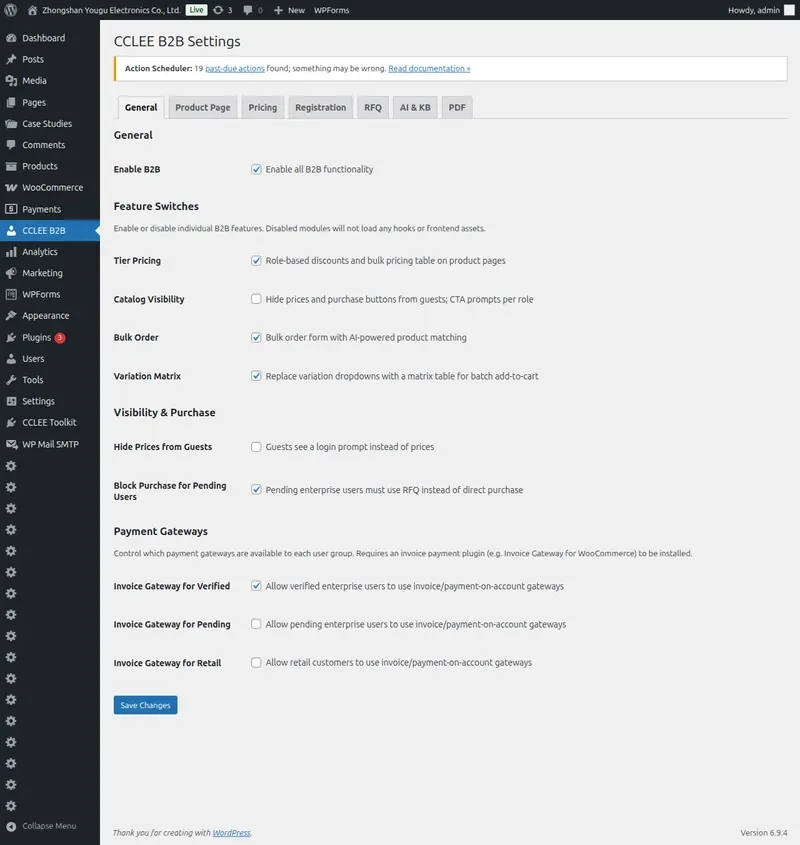
Enable B2B Functionality
Path: CCLEE B2B → General
- Toggle the Enable B2B switch
- Click Save Changes
Note
When B2B is disabled, all B2B modules are completely unloaded without affecting normal retail functionality.
Feature Switches
Independently control each B2B module on/off:
| Module | Description |
|---|---|
| Tier Pricing | Volume-based pricing |
| Catalog Visibility | Catalog access control |
| Bulk Order | Bulk ordering |
| Variation Matrix | Variant matrix table |
When a module is disabled, its frontend assets and hooks are completely unloaded.
Catalog Visibility Control
Hide Prices from Guests
When enabled, guest visitors cannot see product prices and see a login prompt instead.
Effect:
- Shop page: Price area shows "Login to view price"
- Product page: Shows "Login to view price" and "Login" button
Block Purchase for Pending Users
When enabled, pending enterprise users cannot purchase directly. They see a "Request Quote" button directing them to the RFQ workflow.

Guest Product Page Login CTA
Guest visitors to a product page see a login prompt instead of the add-to-cart form.

Payment Gateway Permissions
Control available payment methods per user group:
| User Group | Available Gateways |
|---|---|
| Verified Enterprise | Invoice, Pay Later, Purchase Order |
| Pending Enterprise | Restricted payment methods |
| Retail | Standard retail payments |
Admins can configure allowed payment gateways for each group in settings.
Variation Matrix
Verified enterprise users see a matrix table instead of variation dropdowns when viewing variable products.
Features:
- Display all variants with thumbnails, SKU, price
- Quantity input fields for batch entry
- Select multiple variants and click "Add Selected to Cart" to add all at once

Bulk Order
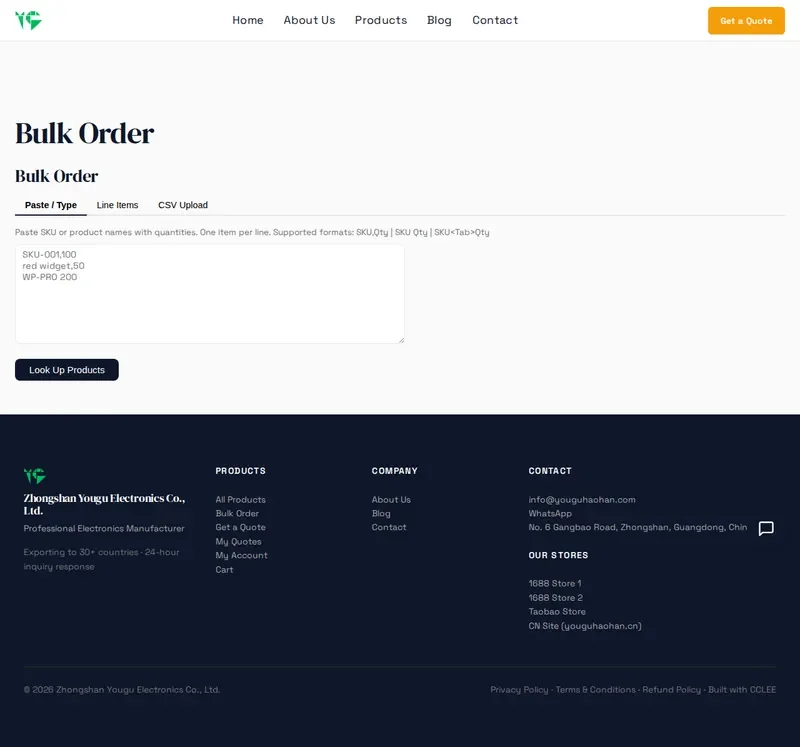
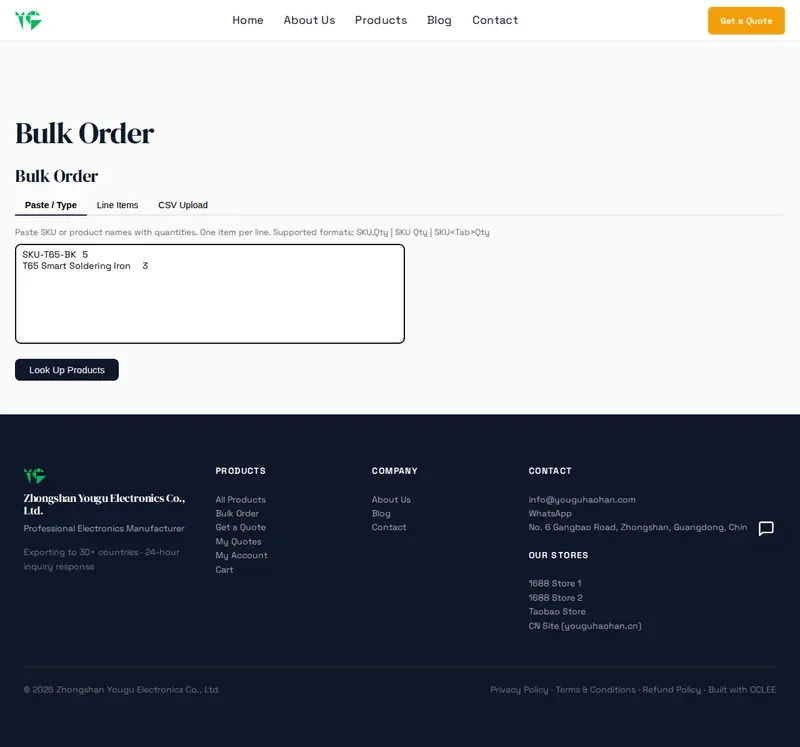
Verified enterprise users can quickly order multiple products by pasting SKUs and quantities.
Path: Add shortcode [cclee_b2b_bulk_order] to a page
How to use:
- On the bulk order page, paste SKUs and quantities
- Click Look Up Products to find products
- Confirm product matching results
- Click Add All to Cart to add all to cart at once
AI-Assisted Matching
With AI configured, non-exact SKU matches will use LLM fuzzy matching. Low confidence results will prompt for confirmation.
FAQ
Guests can't see prices and can't register. What to do?
Confirm Enable B2B and Hide Prices from Guests are both enabled. If guests need to register for enterprise accounts, check if registration is allowed in Registration settings.
Pending users can't place orders but I want to test. What to do?
In WP Admin → Users, approve the test account to Verified status to experience full B2B functionality.