CCLEE B2B — Quote System (RFQ)
Admin path: CCLEE B2B → RFQ
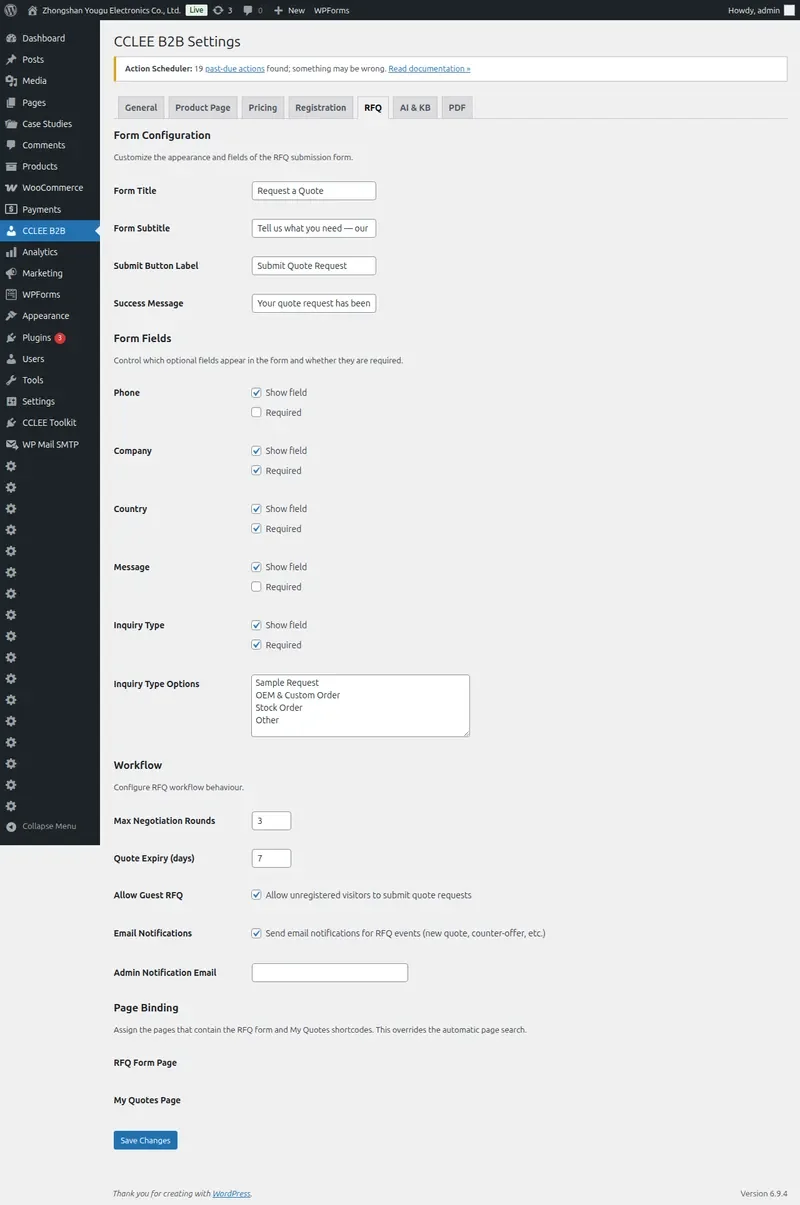
Form Configuration
Basic Settings
- Go to CCLEE B2B → RFQ
- Configure form title, subtitle, button text, success message
Optional Fields
| Field | Description |
|---|---|
| Phone | Contact phone |
| Company | Company name |
| Country | Country/Region |
| Message | Message/Notes |
| Inquiry Type | Type of inquiry |
Each field can be set individually: show/hide and required/optional.
Workflow Settings
| Parameter | Description | Default |
|---|---|---|
| Max Negotiation Rounds | Maximum counter-offer rounds | 3 |
| Quote Expiry Days | Quote validity period (days) | 7 |
| Allow Guest RFQ | Allow guest submission | Yes |
| Email Notifications | Email notifications | Enabled |
Frontend Form Page
Add Form
Add shortcode to page:
- General inquiry:
[cclee_rfq_form] - Specific product inquiry:
[cclee_rfq_form product_id="123"]
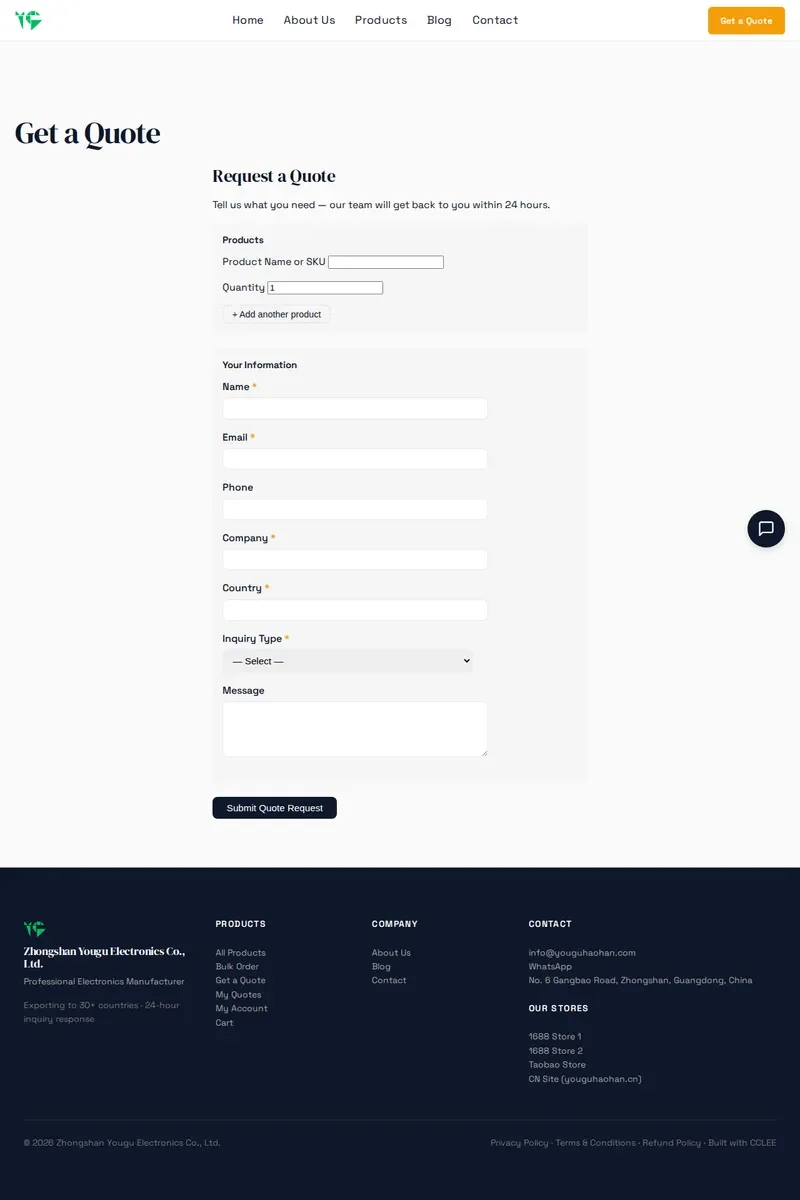
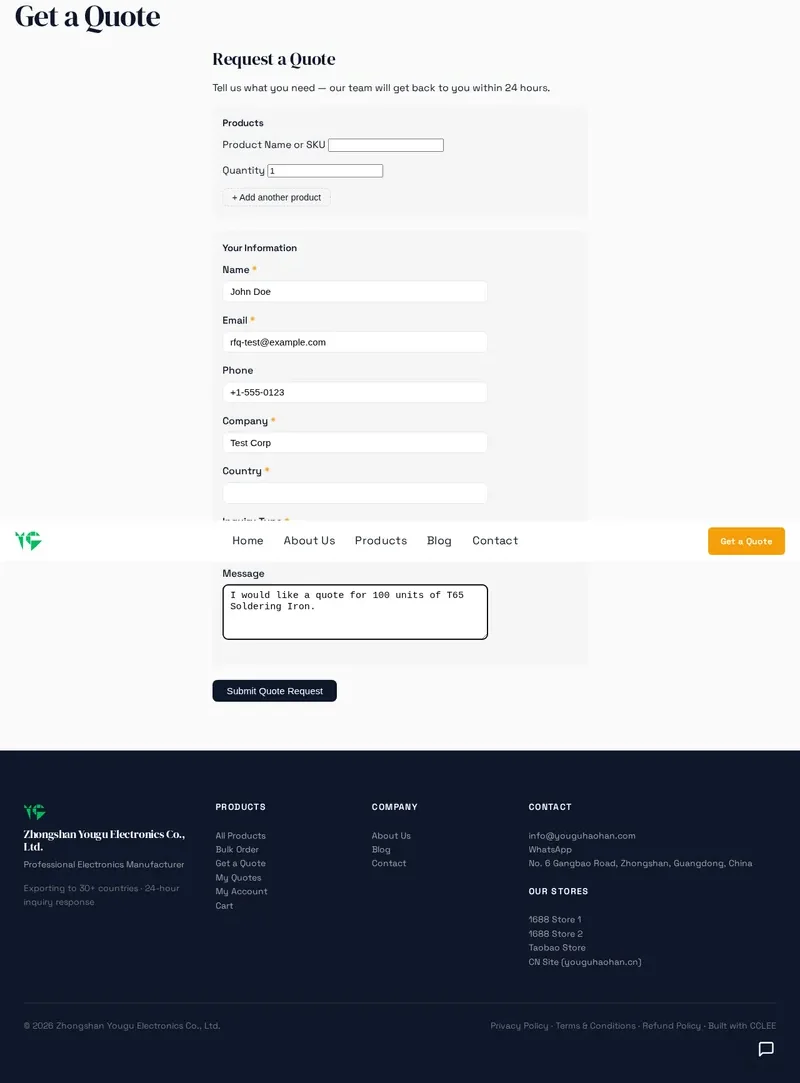
Fill and Submit
Admin Quote Management
View Quote Requests
Go to WP Admin → WooCommerce → Quote Requests
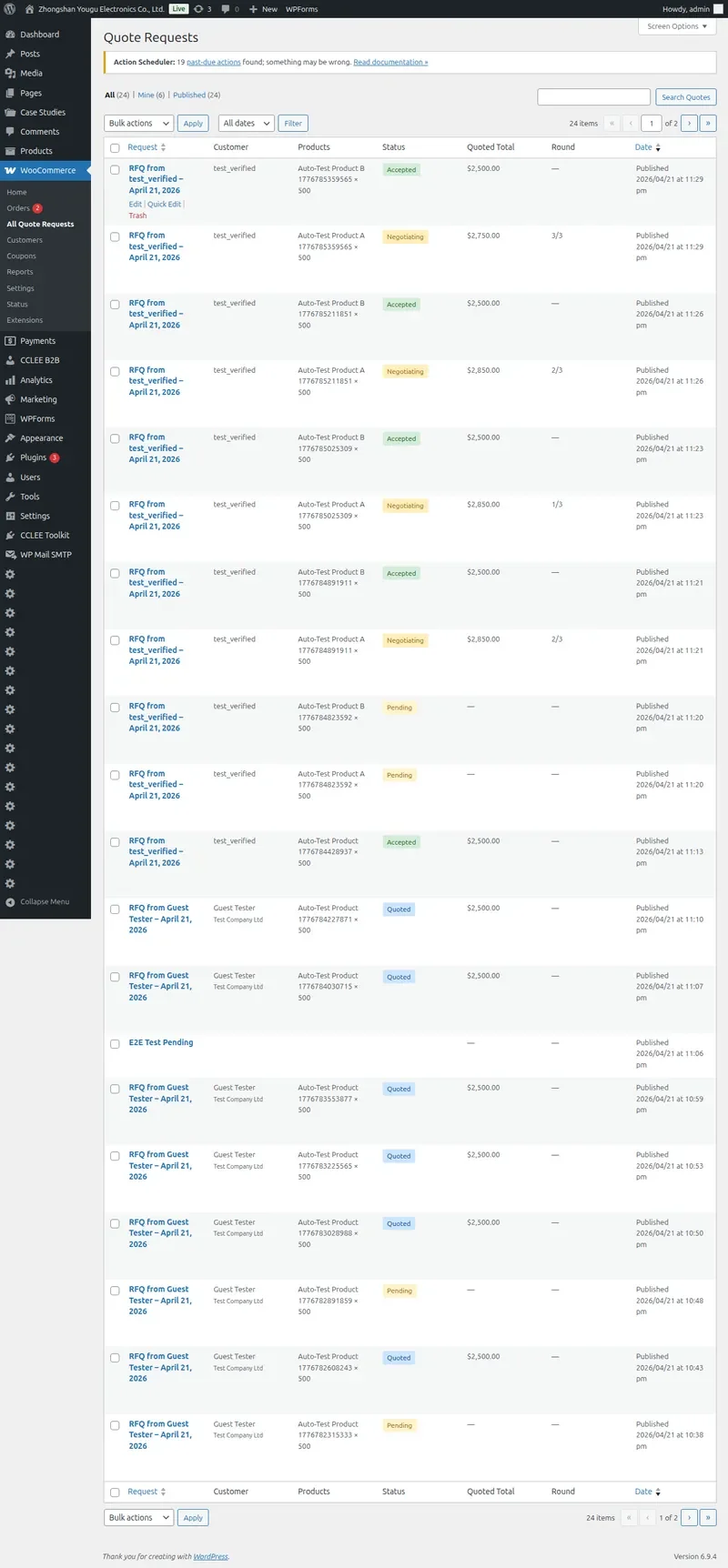
Quote Status
| Status | Description |
|---|---|
| Pending | Awaiting processing |
| Quoted | Quoted, waiting for customer response |
| Accepted | Customer accepted, converted to order |
| Rejected | Customer rejected |
| Expired | Expired |
| Cancelled | Cancelled |
Quote Actions
- Click quote to view details
- Fill in quote amount
- Select quote validity period
- Click Send Quote to send to customer
Email Notifications
After sending quote, system automatically emails customer.
Customer My Quotes
Add My Quotes Page
Add shortcode to page: [cclee_b2b_my_quotes]
Customer Response
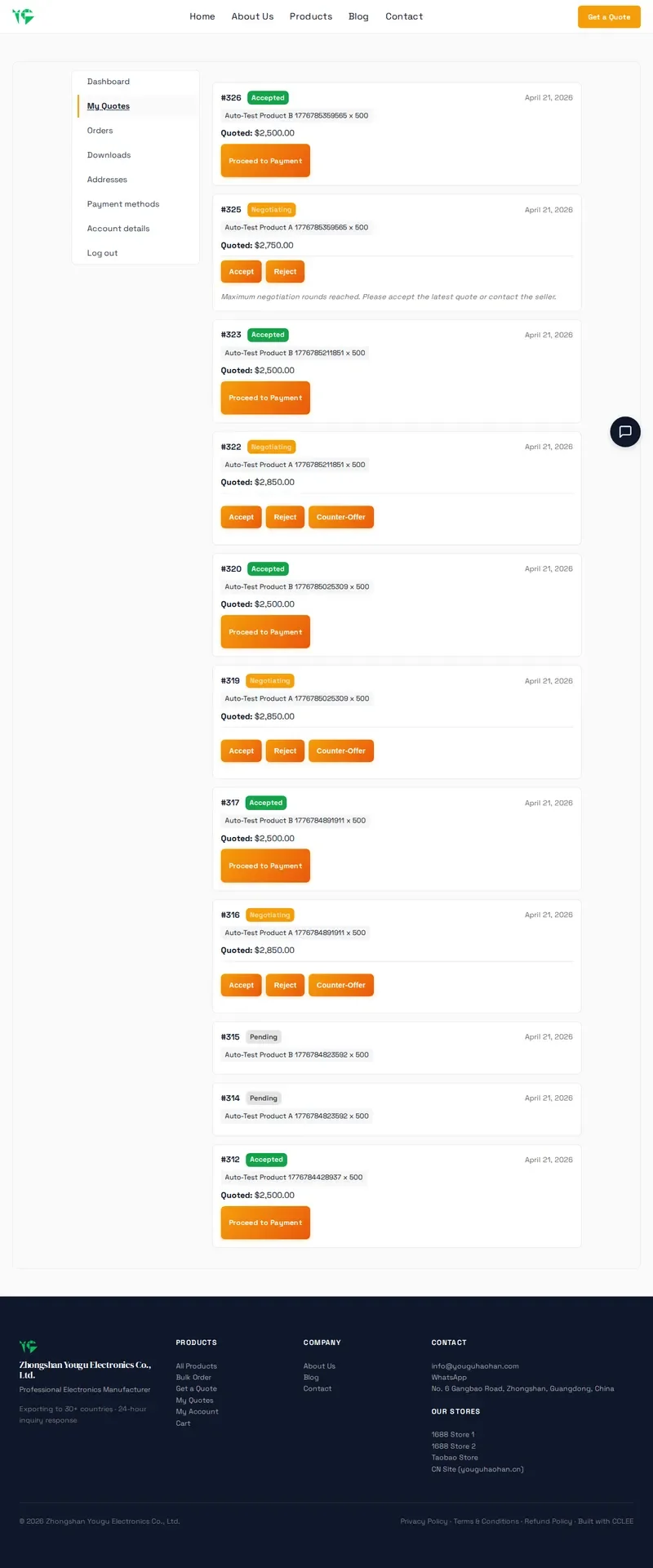
After logging in, customer visits My Account → My Quotes to view all quotes and respond:
| Action | Description |
|---|---|
| Accept | Accept quote, confirm purchase |
| Reject | Reject quote |
| Counter-offer | Counter-offer (consumes negotiation rounds) |
Order Conversion
After customer accepts quote:
- System generates WooCommerce order
- Order amount is the quoted amount
- Customer completes payment process
FAQ
Quote expired. What to do?
Expired quote status automatically changes to Expired. Customer needs to resubmit the inquiry.
Can guests submit RFQ?
Yes. Enable Allow Guest RFQ in RFQ settings.
Can I attach products to RFQ?
Yes. Use [cclee_rfq_form product_id="123"] shortcode. Form automatically attaches specified product info.
How many counter-offer rounds maximum?
Set by Max Negotiation Rounds, default is 3 rounds. After reaching the limit, customer can only accept or reject the current quote.
How to convert RFQ to regular order?
After customer accepts quote, system automatically creates WooCommerce order. No manual operation needed.