CCLEE B2B — Product Page Settings
Admin path: CCLEE B2B → Product Page
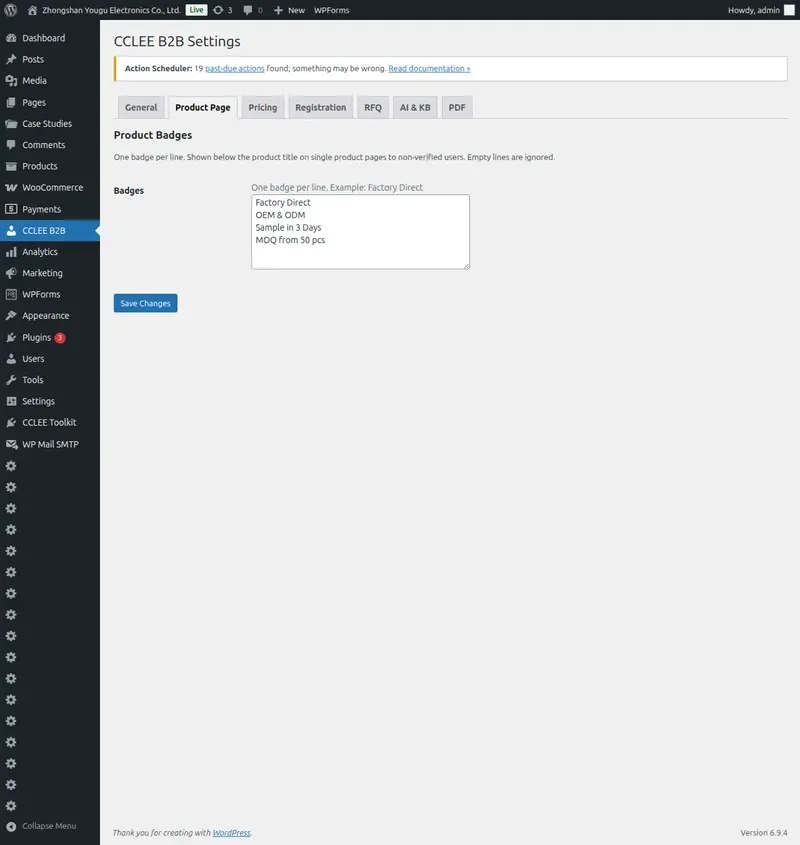
Product Badges
Add custom labels to products to highlight selling points for non-enterprise users.
Use cases:
- Factory Direct / OEM & ODM
- Lead time notice
- Minimum order quantity
- Special certifications
Configuration Steps
- Go to CCLEE B2B → Product Page
- Enter badges in the Badges text area, one per line
- Save settings
Example:
Factory Direct
OEM & ODM Available
7-Day Lead Time
Frontend Display
Non-Verified visitors see badge tags displayed below the product title on the product page.

Badge Display Rules
Badges are only shown to Pending and Retail users. Verified enterprise users see wholesale pricing by default and don't need badge guidance.
Internal Product ID (Source ID)
Set an internal product number in the backend for B2B buyers' reference.
Configuration Steps
- Go to WP Admin → Products → Edit
- Switch to the Inventory tab
- Fill in the Internal Product ID field
- Update product

Frontend Display
The internal ID is displayed in the product meta area, making it easy for procurement to reference the correct product when ordering by phone or email.
Recommended Accessories
Based on Cross-sell associations, display related accessory recommendations at the bottom of the product page.
Configuration Steps
- Go to WP Admin → Products → Edit
- In the Linked Products panel, find Cross-sells
- Search and add related products
- Update product
Frontend Display
Below the add-to-cart button, a "Recommended Accessories" horizontal card row appears.

Card content:
- Accessory product image
- Accessory name
- Accessory price (if any)
- Click to navigate to accessory product page
FAQ
Badges not displaying?
- Confirm Badges text area has content in Product Page settings
- Confirm current user is not a Verified enterprise user (Verified users don't see badges)
- Clear browser cache or test in incognito mode
Recommended accessories not showing?
- Confirm the product has Cross-sell associations added
- Confirm current user is a Verified enterprise user
- Check if the product has valid Cross-sell products
Where does the internal ID display?
It displays in the product meta information area near the add-to-cart button.