CCLEE B2B — AI Customer Service
Admin path: CCLEE B2B → AI & KB
The AI customer service supports 18 common scenarios, covering product inquiries, order tracking, stock checks, quote requests, and knowledge base Q&A. Both visitors and logged-in customers receive instant responses.
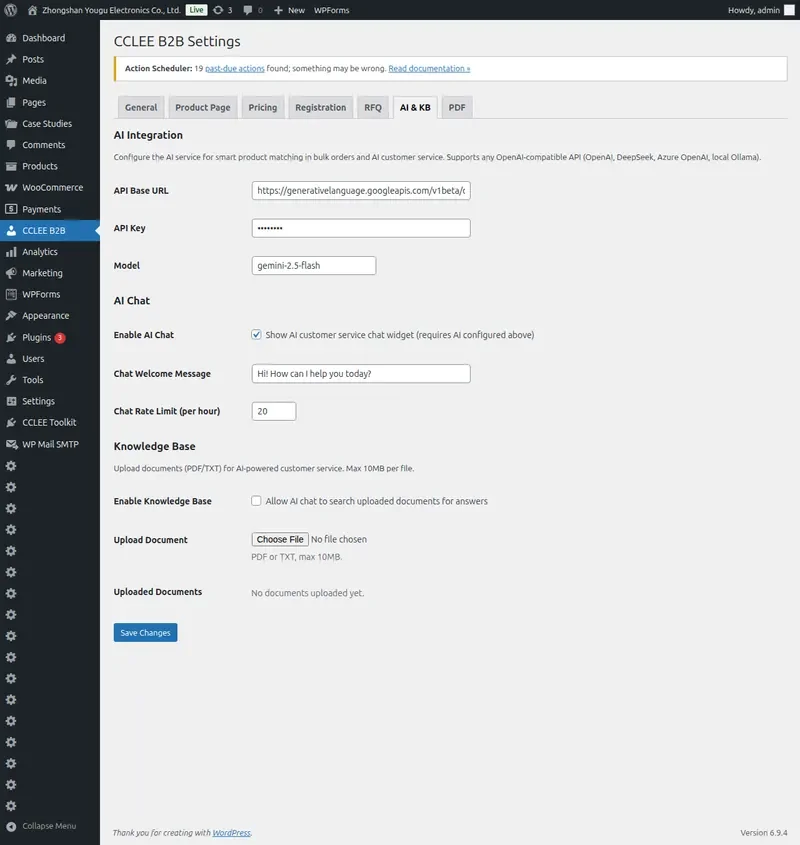
Quick Start
- Configure API: Fill in AI Base URL, API Key, and select model
- Enable Bubble: Enable
Chat Enabledto show floating chat bubble on frontend - Upload Knowledge Base (optional): Upload PDF/TXT/MD company documents for AI to answer policy questions
- Start Using: Visitors click the bubble to start a conversation
Usage Scenarios
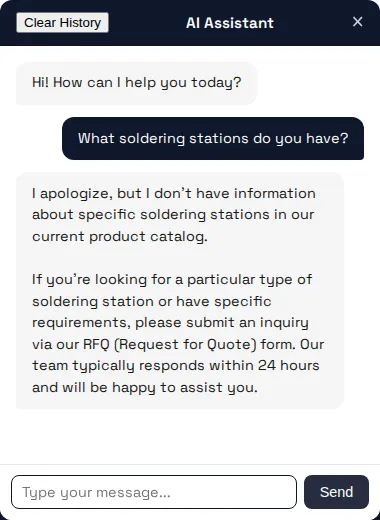
1. Product Keyword Search
Any visitor can search products using natural language. AI searches the product catalog and returns matching results with name, price, and stock status.
Example:
User: "Do you have any desktop soldering stations?"
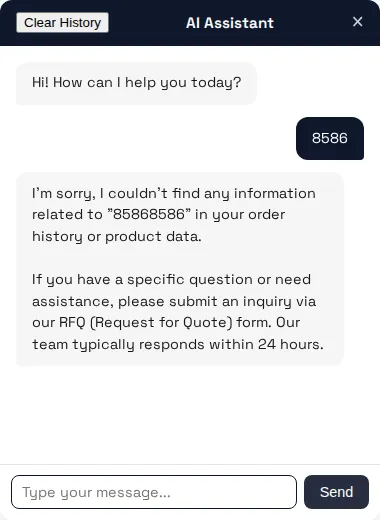
2. Exact SKU Search
Logged-in B2B customers can search by SKU code (e.g., 8586) for precise product matches. AI recognizes the SKU format and returns the product with the customer's exclusive pricing and tiered discounts.
Example:
User: "8586"
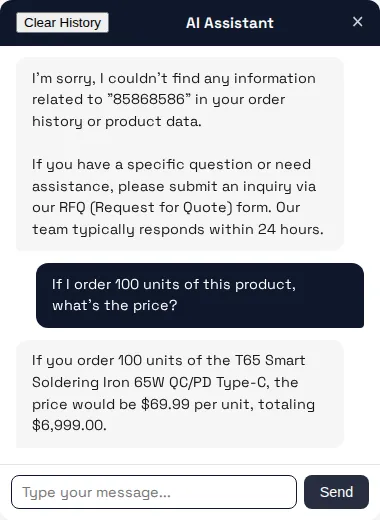
3. Tiered Pricing Calculation
Logged-in B2B customers can ask about bulk pricing. AI looks up tiered pricing tables and calculates the total cost for the requested quantity.
Example:
User: "If I order 100 units of this product, what's the price?"
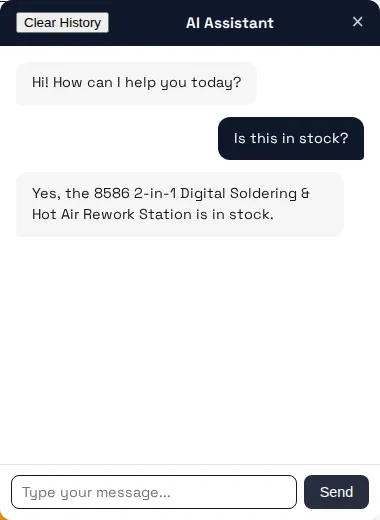
4. Stock Status Check
Visitors can check stock status for any product. AI returns in-stock or out-of-stock status and may suggest alternatives when out of stock.
Example:
User: "Is this in stock?"
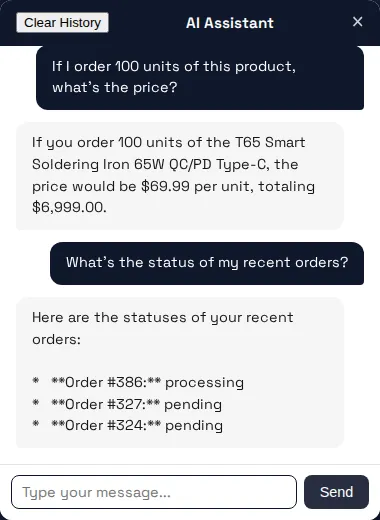
5. Order Status Query
Logged-in users can query recent orders. AI returns order status, date, item list, and total amount.
Example:
User: "What's the status of my recent orders?"
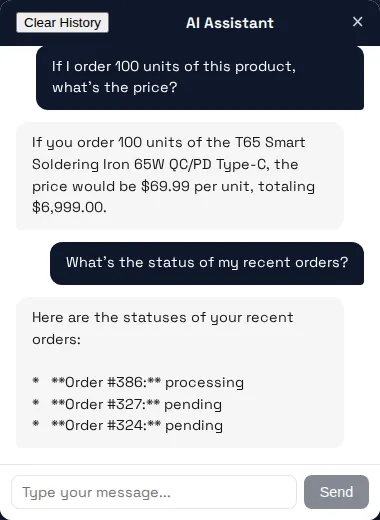
6. Order Tracking by ID
Logged-in users can query a specific order by its number. AI returns order details and estimated processing time.
Example:
User: "Where's order 387?"
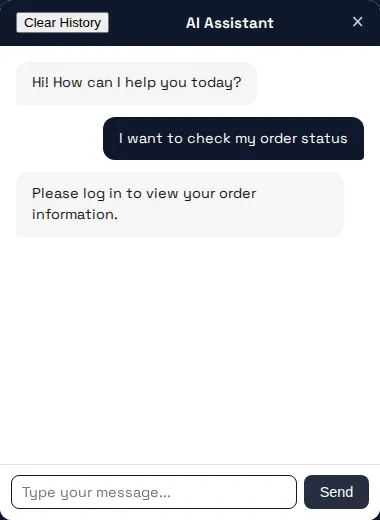
7. Guest Order Query
Guests (non-logged-in users) asking about orders are prompted to log in. AI explains that order tracking requires an authenticated account.
Example:
User: "I want to check my order status"
AI responds: "Order tracking requires a logged-in account. Please log in first."
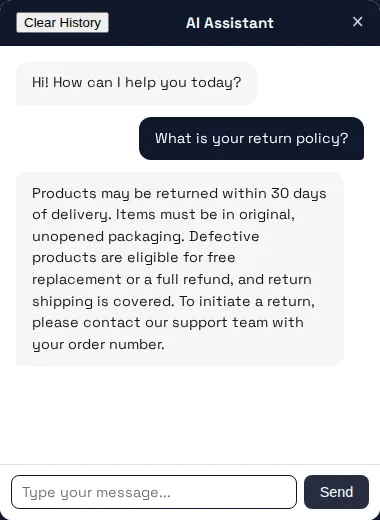
8. Knowledge Base Policy Q&A
AI searches uploaded company documents to answer questions about return policies, warranty terms, shipping instructions, etc. Supports cross-language queries — ask in Chinese and match English documents.
Example:
User: "What is your return policy?" User: "起订量多大?" (What's the minimum order quantity?) User: "What is the lead time?"
9. Out-of-Scope Questions (Fallback)
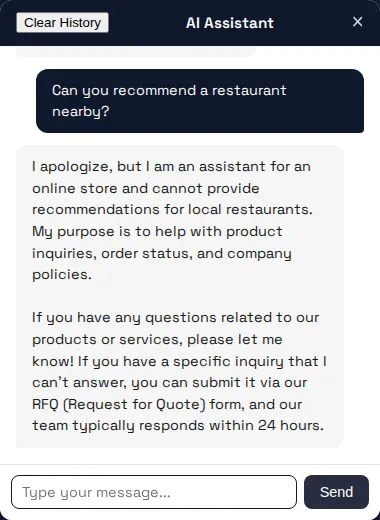
When a question falls outside the chat's scope (products, orders, company policies), AI politely declines and redirects to appropriate channels such as the RFQ form.
Example:
User: "Can you recommend a restaurant nearby?"
10. RFQ Form Guidance
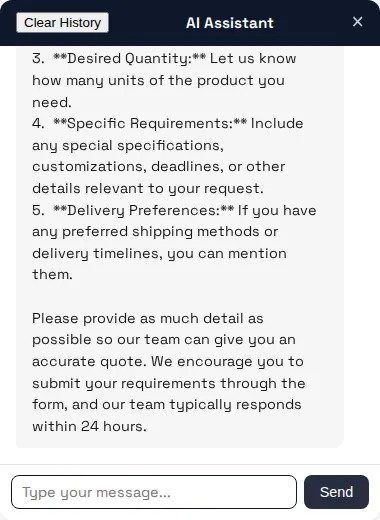
When a user is on the Request for Quote page, AI provides contextual guidance on how to fill out the RFQ form, listing required fields and encouraging submission.
Example:
User: "What information do I need to provide?"
11. RFQ Status Check
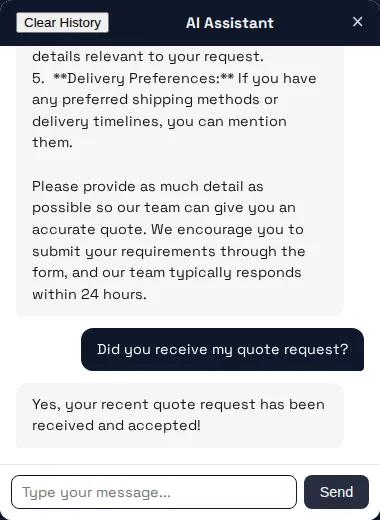
Logged-in customers who have submitted RFQs can query their status. AI returns the current status of the most recent quote request.
Example:
User: "Did you receive my quote request?"
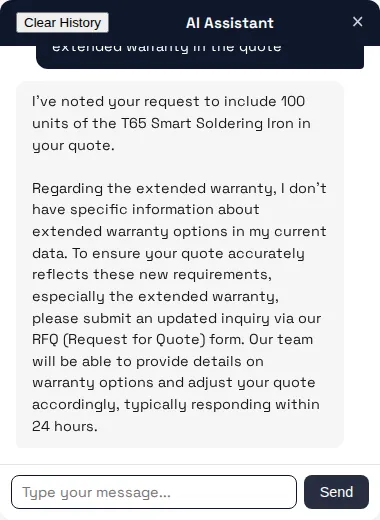
12. Multi-turn Conversation
AI maintains context across multiple messages. Users can ask follow-up questions, and AI remembers the previous conversation, enabling natural product exploration and quotation requests.
Example:
Turn 1: "Do you have lead-free soldering equipment?" Turn 2: "What's the warranty on this?" Turn 3: "I want to request a quote for 100 units with extended warranty"
13. Cross-Language Support
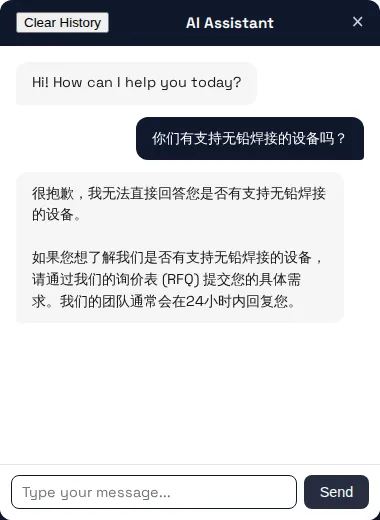
AI automatically detects the user's message language and responds in the same language. Supports Chinese, English, and other languages.
Example:
User: "你们有支持无铅焊接的设备吗?"
14. Rate Limiting
The system limits messages per IP per 60 seconds (default: 20) to prevent API abuse. When exceeded, a friendly error message is shown.
Note: Adjustable in backend AI & KB settings.
Rate Limiting
Recommended values: 30-50 messages/hour for normal sites, 100 messages/hour for high-traffic sites. Wait for automatic reset after limit is reached.
15. AI Not Configured
If the administrator has not configured the API Key, the chat bubble will not appear on the frontend. Once configured and enabled, the bubble appears on all pages.
Backend path: WooCommerce → Settings → B2B → AI & Knowledge Base
16. Inline Shortcode Mode
Besides the floating bubble, the chat panel can be embedded directly into any page using a shortcode:
[cclee_b2b_chat]
This creates an always-visible chat panel within the page content, suitable for dedicated "Live Support" pages.
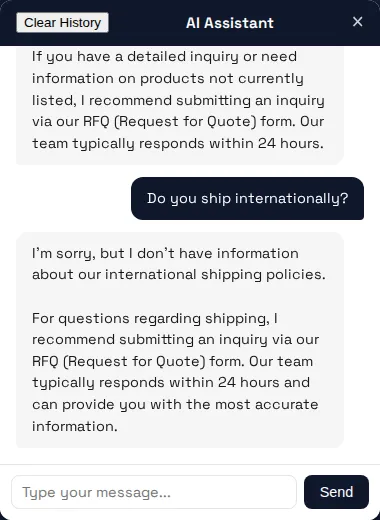
17. Conversation History Persistence
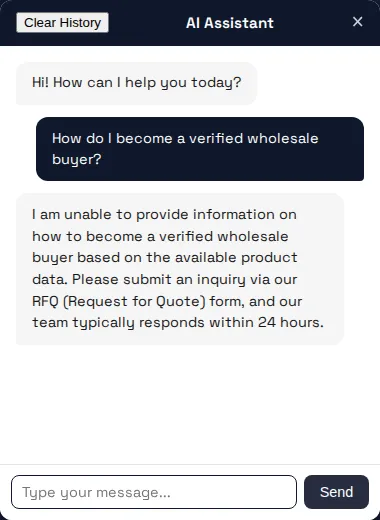
Logged-in users' conversation history is saved to the database. After switching browsers or devices, previous messages are automatically restored.
Before closing browser — Conversation about product questions:
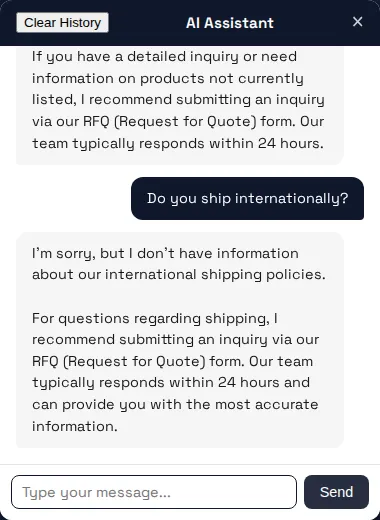
After reopening site — Messages restored from database:
18. Clear History
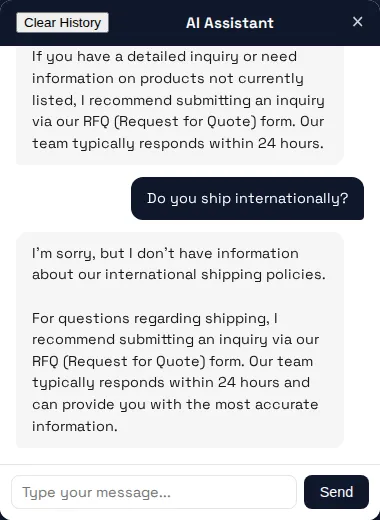
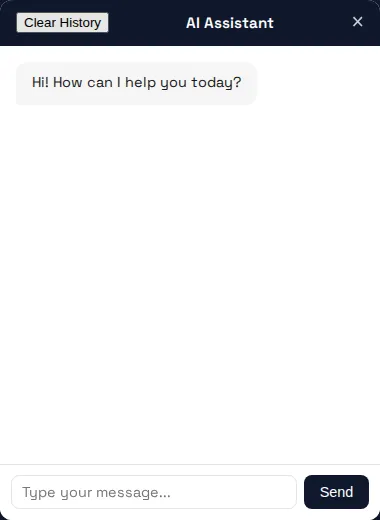
Users can manually clear their chat history by clicking the "Clear History" button in the chat panel header. After clearing, the welcome message is shown.
Before clearing — Existing conversation:
After clearing — Welcome message shown:
AI Intent Routing
AI customer service automatically identifies question types and responds:
| Intent | Trigger Condition | AI Returns |
|---|---|---|
| Product Inquiry | Asking about product name, price, inventory | Product info, price, stock status |
| SKU Query | Entering SKU code | Exact product match, exclusive price |
| Order Query | Logged-in user asking about orders | Order summary, status, shipping info |
| Stock Query | Any visitor checking inventory | In-stock/out-of-stock status |
| RFQ Related | Asking about quotes or submitting RFQ | Form guidance or RFQ status |
| Knowledge Base | Asking about policies, services, guides | Document excerpts, related links |
| General | Other questions | Friendly response, guide to other channels |
Admin Configuration
Basic Settings
| Field | Description | Example |
|---|---|---|
| API Base URL | AI service endpoint | https://api.openai.com/v1 |
| API Key | API key (AES-256-CBC encrypted) | sk-... |
| Model | Model identifier | gpt-4o-mini, gemini-2.5-flash |
| Chat Enabled | Master switch for floating chat bubble | — |
| Chat Welcome | Welcome message on first open | How can I help you? |
| Rate Limit | Max messages per IP per 60 seconds | 20 |
Knowledge Base Settings
| Field | Description |
|---|---|
| Enable Knowledge Base | Enable to let AI search uploaded documents for answers |
| Upload File | Supports PDF, TXT, MD formats, 10MB max per file |
| Document List | Shows uploaded documents with filename, upload date, and chunk count. Each can be deleted individually |
Cross-Language Support
Knowledge base documents can be written in any language. Customers asking questions in Chinese, English, or other languages can all get answers from the documents. Keep total document size under 50KB for best results.
Supported AI Services
Supports any OpenAI-compatible API:
- OpenAI (GPT-4o, GPT-4o-mini, etc.)
- DeepSeek
- Claude (via compatible endpoint)
- Custom API
API Key Security
API Key is encrypted and never displayed in plain text after saving. To change, simply overwrite the field.
FAQ
Chat panel not displaying?
- Confirm Chat Enabled is on
- Check if API Key is valid in AI & KB settings
- Check browser console for JS errors
AI responses not accurate?
- Confirm knowledge base documents uploaded and relevant
- Try more specific question descriptions
- Check if API Key quota is sufficient
Can guests use AI customer service?
Yes. Chat bubble is displayed to all visitors. Order queries require login to use.
Will conversation history auto-save?
Only for logged-in users. Guest conversations are not retained after closing the browser.
How to clear conversation history?
Click the "Clear History" button in the chat panel header to manually clear the current conversation.