CCLEE B2B — PDF Catalog
Admin path: CCLEE B2B → PDF
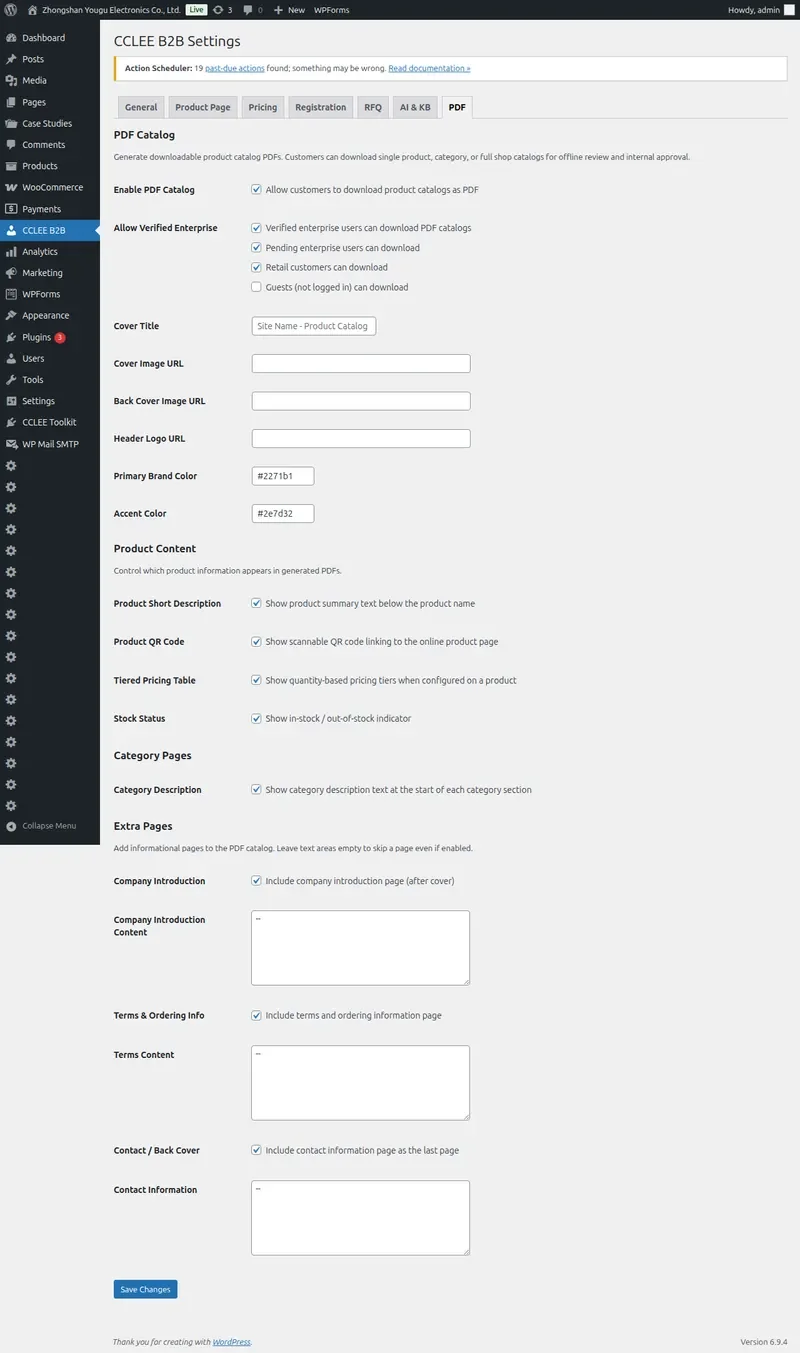
Enable PDF Function
- Go to CCLEE B2B → PDF
- Check Enable PDF Catalog
- Save settings
After enabling, PDF download buttons appear on shop, product, and category pages.
Download Permission Control
User Group Permissions
| User Group | Can Download | Default |
|---|---|---|
| Verified Enterprise | ✅ | Allowed |
| Pending Enterprise | ⚠️ Optional | Optional |
| Retail Customer | ⚠️ Optional | Disallowed |
| Guest | ⚠️ Optional | Disallowed |
Configuration Steps
- In Group Permissions section
- Set allow/disallow for each user group
- Save
Brand Styling
Brand Colors
| Setting | Description |
|---|---|
| Primary Color | Main color, used for headers, emphasis |
| Accent Color | Secondary color, used for borders, decoration |
Cover Settings
| Setting | Description |
|---|---|
| Cover Title | Cover headline |
| Cover Image | Cover image (optional) |
Product Content Configuration
Available Content
| Content | Description |
|---|---|
| Product Description | Product description |
| QR Code | QR code linking to product page |
| Tier Pricing Table | Tier pricing table (if available) |
| Stock Status | Inventory status |
Configuration Steps
- In Product Content section, check content to display
- Save
Extra Pages
Available Extra Pages
| Page Type | Purpose |
|---|---|
| Company Introduction | Company profile |
| Terms & Conditions | Terms and conditions |
| Contact Information | Contact details |
Each extra page uses a rich text editor where you can add text, images, and links.
Frontend Download Buttons
Product Page PDF
Single product page shows "Download PDF" button to download that product's PDF.

Shop Page PDF
Shop and category pages show "Download Full Catalog (PDF)" or "Download Category Catalog (PDF)" button.
PDF Structure
Generated PDFs contain:
| Section | Description |
|---|---|
| Cover | Brand colors, cover title, image |
| Table of Contents | PDF navigation |
| Product List | Products by category or full shop, with configured content |
| Extra Pages | Company intro, terms, contact (if configured) |
| Back Page | Closing message, copyright info |
FAQ
PDF download button not showing?
- Confirm Enable PDF Catalog is checked
- Confirm current user group has download permission
- Clear browser cache and retry
PDF content incomplete?
- Check if products have descriptions and other info filled in
- Confirm related content items are checked in PDF settings
- Some content (like tier pricing) only displays if product has relevant configuration
Can I customize PDF template?
Currently supports color, cover, and content configuration. Full template style customization requires custom development.
PDF generation is slow?
Full shop catalogs with many products take longer to generate. Consider:
- Generate in batches (by category)
- Avoid peak hours
- Consider pre-generating static PDFs
What languages are supported?
PDF content uses product data language directly. For multi-language PDFs, configure a multi-language plugin.