CCLEE Toolkit — Image Alt Auto
Navigate to: CCLEE Toolkit → Image Alt Auto
Prerequisites
Image Alt Auto depends on the AI module. First enable AI Assistant in CCLEE Toolkit → General and complete the configuration (API Key, Provider, Model).
Auto-Generate
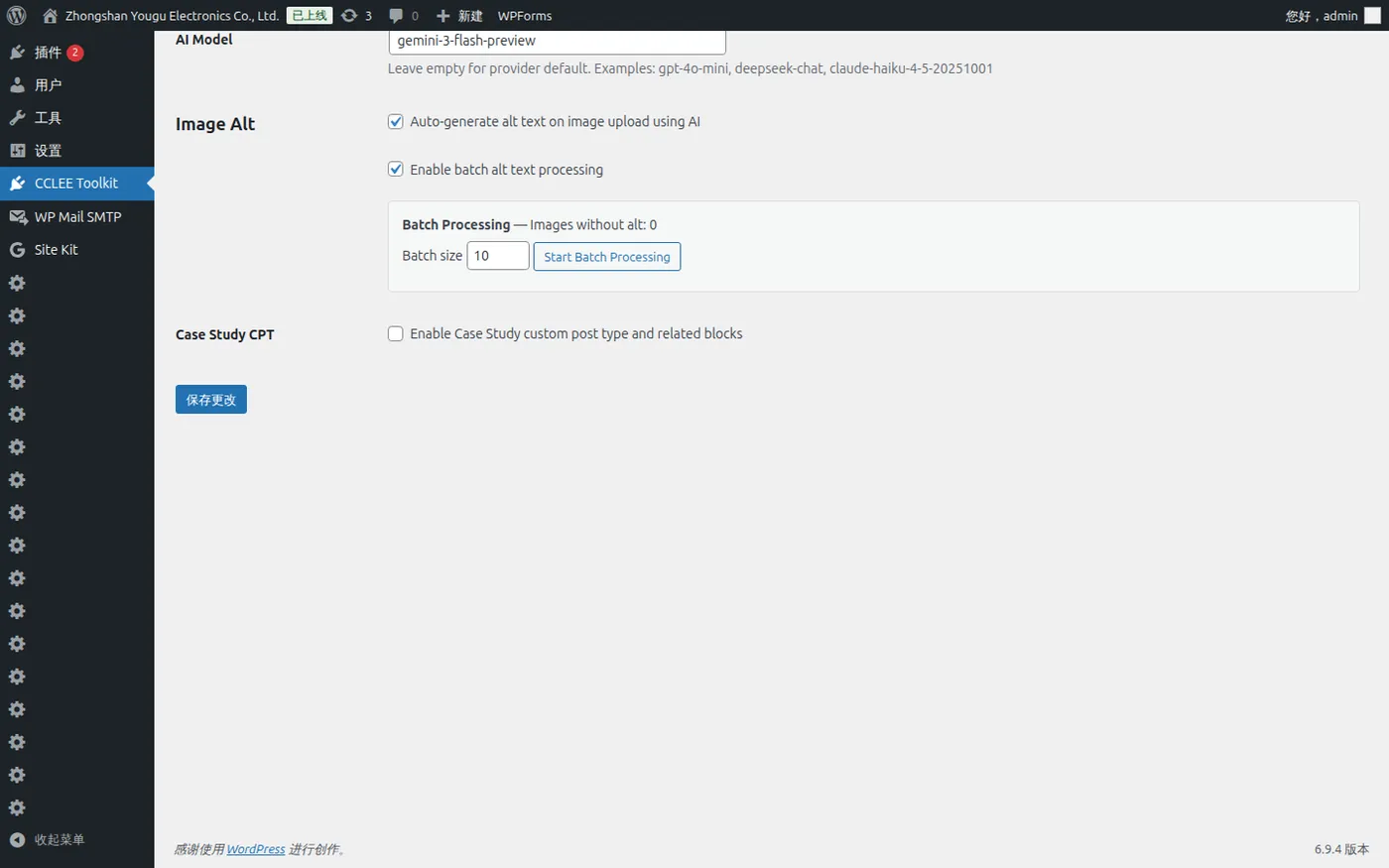
- Check Enable auto-generate alt on image upload — automatically generates alt text for images uploaded without one
- Save settings
Once enabled, images uploaded via the WordPress media library will automatically have AI-generated alt attributes.
Batch Processing
- Check Enable batch alt text processing — enables batch processing
- Set the number of images per batch (default 10, max 50)
- Click Start Batch Processing to begin
Batch processing scans the media library for images missing alt text and generates descriptions using AI.
FAQ
Auto-generate not working?
Confirm AI Assistant is enabled and settings are saved. Image Alt relies on the AI module — enabling it alone won't work.
Batch processing interrupted?
Simply click Start Batch Processing again. Already processed images won't be regenerated.
Poor quality alt text?
AI output quality depends on the model configured in General. Try switching to a stronger model (e.g., gpt-4o) for better descriptions.