FedEx Registration Guide
Before using the cclee-shipping plugin, you need to register a FedEx business account and obtain API credentials. The process consists of two parts: business account registration and API developer registration.
Part 1: Business Account Registration
Step 1: Register Business Account
- Visit FedEx Official Website
- Click "Register"
- Select "Business Account"
- Fill in company information:
- Company Name
- Tax ID (EIN)
- Company Address
- Contact Information
- Submit and wait for FedEx review (usually 1-3 business days)
- After approval, you will receive a 9-digit user ID for login
Step 2: Complete Service Safety Agreement
- Fill in the "FedEx Service and Safety Agreement", ensuring:
- FedEx service account number
- Payment bank account information
- Sign and apply company seal
Step 3: Submit Qualification Documents
You will receive an email requesting the following documents:
- FedEx Service and Safety Agreement (with company seal) - 2 copies
- Latest business license copy (with company seal) - 1 copy
After preparation, contact FedEx via the phone number in the email to arrange pickup.
Special Approval Required for Certain Business Types
The following business types must contact FedEx sales for special approval before submitting documents:
- Logistics companies
- Sole proprietorships
- Individual businesses
- Companies with non-local business licenses
If you don't have a business license, you can provide copies of registration certificates or permits with equivalent validity (with company seal).
Step 4: Account Activation Confirmation
Your account is ready to use once you receive the activation email. Sample email:
Your FedEx customer account: ****5281 is now active as a credit account.
Part 2: API Developer Registration
Step 5: Register FedEx Developer Account
- Visit FedEx Developer Portal
- Click "Sign Up"
- Fill in business email and company information
- Verify email and complete login
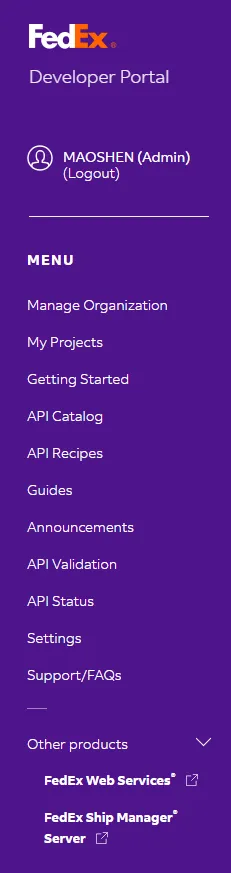
After login, the left menu contains the following modules:
| Menu | Description |
|---|---|
| Manage Organization | Organization management, manage company account info |
| My Projects | My projects, manage development projects |
| Getting Started | Getting started guide for beginners |
| API Catalog | API catalog, browse available API services |
| API Recipes | API recipes, sample code and best practices |
| Guides | Development guides, technical documentation |
| Announcements | Announcements, platform update notifications |
| API Validation | API validation, test API calls |
| API Status | API status, check service status |
| Settings | Settings, account configuration |
| Support/FAQs | Help and support, FAQs |
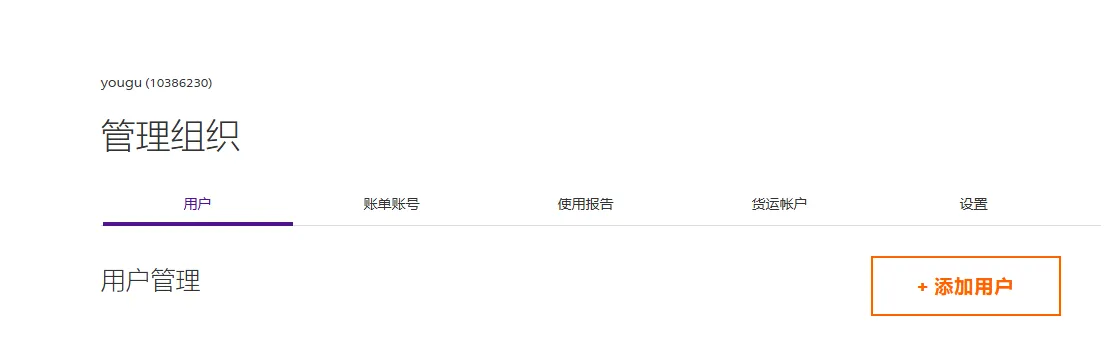
Go to Manage Organization and fill in:
- Company Name
- Region
- Country
- Address
- User ID (9-digit number received in email)
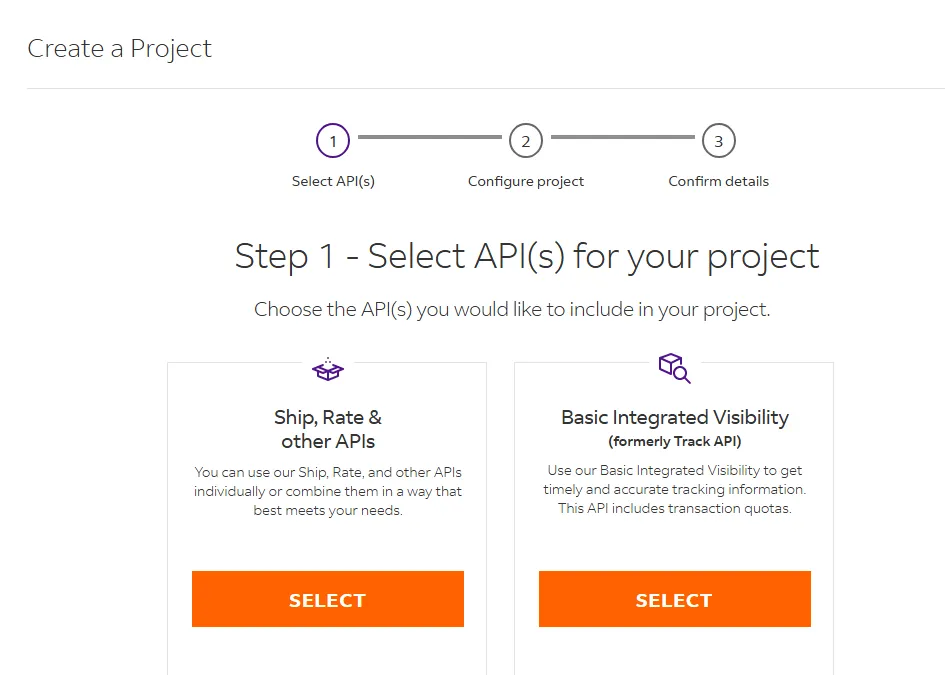
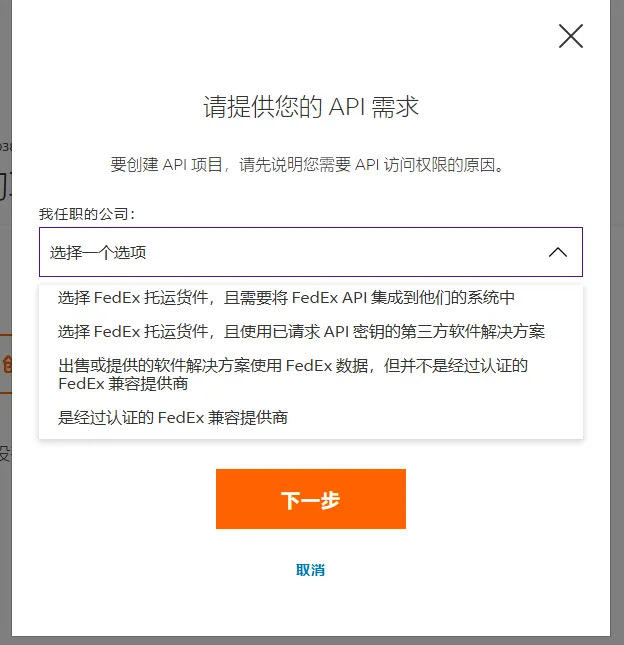
Step 6: Create App and Apply for API Permissions
- Click My Projects → Create App
- On the Step 1 - Select API(s) for your project page, select Ship, Rate & other APIs
API Selection Note
- Basic Integrated Visibility only includes tracking (Track), cannot be used for rate inquiry or shipping
- WooCommerce integration must select Ship, Rate & other APIs
After selecting Ship, Rate & other APIs, you can access 14 APIs. Here are recommendations for WooCommerce integration:
| Category | API | Description |
|---|---|---|
| Required | Ship API | Create shipments, generate labels |
| Required | Rates and Transit Times API | Display shipping rates and delivery time at checkout |
| Recommended | Address Validation API | Validate recipient address, reduce delivery errors |
| Recommended | Service Availability API | Check available service types for destination |
| Not Needed | Consolidation API | For consolidation shipping |
| Not Needed | Freight LTL API | For heavy cargo/freight |
| Not Needed | Global Trade API | For compliance documents, generally not needed |
- Submit application and wait for FedEx approval (usually 1-2 business days)
Step 7: Get API Credentials
After approval, get credentials from My Projects project details:
| Credential | Description | Location |
|---|---|---|
| Client ID | API Key | Project details page |
| Client Secret | Secret Key | Project details page |
| Account Number | FedEx Account | 9-digit number received in email |
Credentials Obtained
Once you have Client ID, Client Secret, and Account Number, you can configure FedEx shipping in WooCommerce.
Use apis-sandbox.fedex.com for testing environment, apis.fedex.com for production environment.
Next Steps
After obtaining credentials, go to WooCommerce → Settings → Shipping and configure FedEx using the credentials obtained from FedEx Developer Portal. See cclee-shipping User Guide for detailed plugin configuration.